Personal Budget Manager with Angular
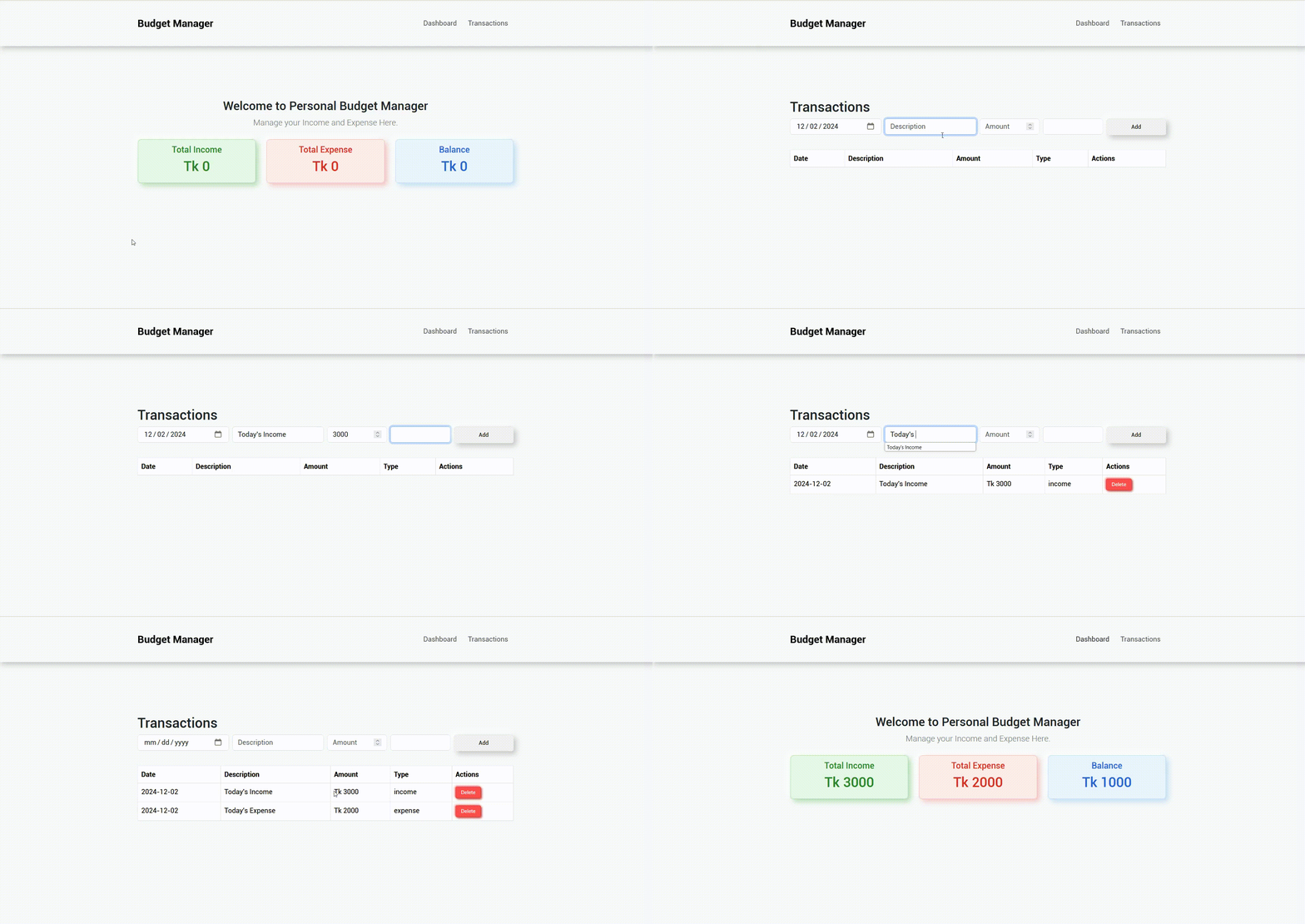
This step-by-step guide will teach you how to create a Personal Budget Manager App using Angular, featuring Income, Expense and Current Balance.
Tutorial Steps
Download Tutorial
Step 1 – Create Angular App
Run the following command to create a new Angular project:
ng new personal-budget-manager --no-standalone --routing --ssr=falseRun the following command to install jquery, popperjs, and bootstrap :
cd personal-budget-manager
npm install jquery --save
npm install @popperjs/core --save
npm install ngx-bootstrap bootstrap@latest
ng add ngx-bootstrap
Run the following command to install Angular Ant Design:
ng add ng-zorro-antdYour Application Folder Structure will be like:
src
├── app
│   ├── home
│   │   ├── home.component.html
│   │   ├── home.component.css
│   │   └── home.component.ts
│   ├── model
│   │   └── transaction.ts
│   ├── service
│   │   └── data.service.ts
│   ├── transaction
│   │   ├── transaction.component.html
│   │   ├── transaction.component.css
│   │   └── transaction.component.ts
│   ├── app.component.html
│   ├── app.component.ts
│   ├── app.module.ts
│   ├── app-routing.module.ts
├── index.html
├── style.css
Step 2 – Project Setup
Copy and Paste following code styles section of angular.json file:
"./node_modules/bootstrap/dist/css/bootstrap.min.css"

Copy and Paste following code script section of angular.json file:
"./node_modules/jquery/dist/jquery.min.js",
"./node_modules/bootstrap/dist/js/bootstrap.bundle.min.js"
Step 3 – Create Home Component for Dashboard
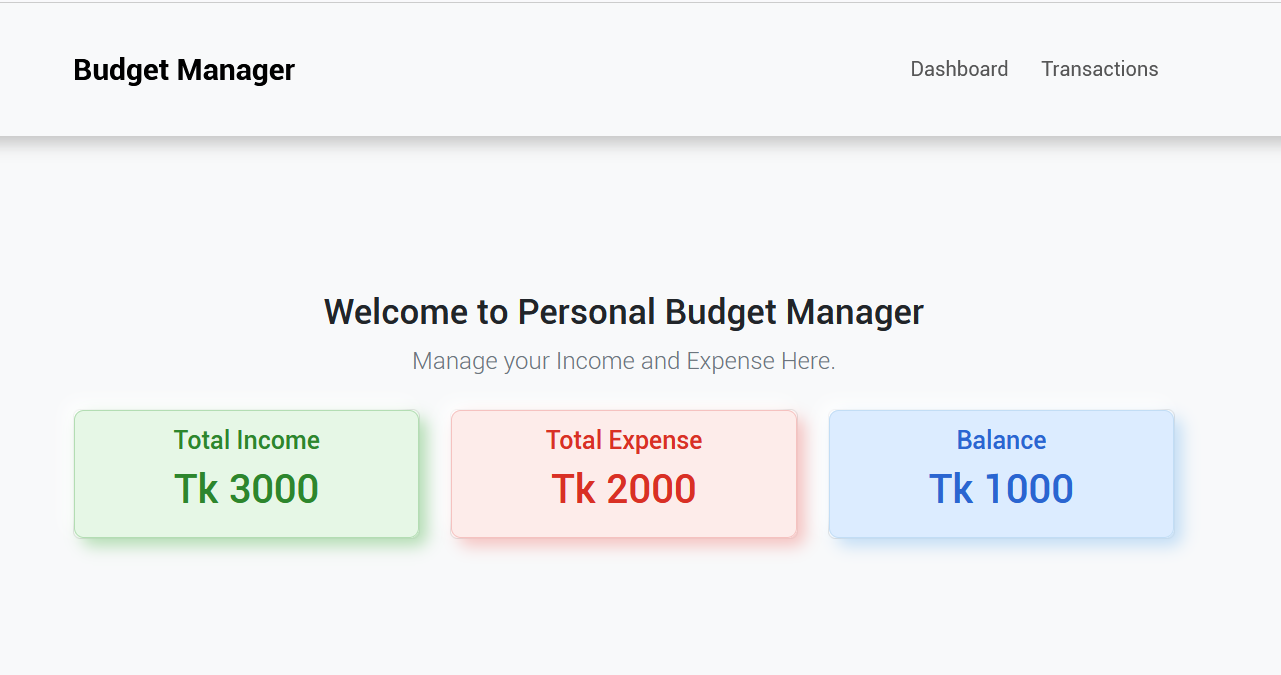
Create Home Component for Dashboard with the following command:
ng generate component --skip-tests=true homeYou will get:
home.component.html
home.component.css
home.component.ts
Copy and Paste the following code to home.component.html:
<div class="container mt-5">
  <h3 class="text-center">Welcome to Personal Budget Manager</h3>
  <p class="lead text-center">Manage your Income and Expense Here</p>
  <div class="row text-center mt-4">
    <div class="col-md-4">
      <div class="card">
        <div class="card-income">
          <h5>Total Income</h5>
          <h2>Tk {{ totalIncome }}</h2>
        </div>
      </div>
    </div>
    <div class="col-md-4">
      <div class="card">
        <div class="card-expense">
          <h5>Total Expense</h5>
          <h2>Tk {{ totalExpense }}</h2>
        </div>
      </div>
    </div>
    <div class="col-md-4">
      <div class="card">
        <div class="card-balance">
          <h5>Balance</h5>
          <h2>Tk {{ balance }}</h2>
        </div>
      </div>
    </div>
  </div>
</div>
Copy and Paste the following code to home.component.ts :
 import { Component } from '@angular/core';
import {DataService} from "../services/data.service";
@Component({
  selector: 'app-home',
  templateUrl: './home.component.html',
  styleUrl: './home.component.css'
})
export class HomeComponent {
  totalIncome: number = 0;
  totalExpense: number = 0;
  balance: number = 0;

  constructor(private dataService: DataService) {
    this.calculateSummary();
  }

  calculateSummary() {
    const transactions = this.dataService.getTransactions();
    this.totalIncome = transactions
      .filter((t) => t.type === 'income')
      .reduce((sum, t) => sum + t.amount, 0);
    this.totalExpense = transactions
      .filter((t) => t.type === 'expense')
      .reduce((sum, t) => sum + t.amount, 0);
    this.balance = this.totalIncome - this.totalExpense;
  }
}
Copy and Paste the following code to app.component.html for Navigation Menu:
 <nav class="navbar navbar-expand-lg sticky-top bg-white">
  <div class="container">
    <a class="navbar-brand" routerLink="/">Budget Manager</a>
    <button
      class="navbar-toggler"
      type="button"
      data-bs-toggle="collapse"
      data-bs-target="#navbarNav"
      aria-controls="navbarNav"
      aria-expanded="false"
      aria-label="Toggle navigation"
    >
      <span class="navbar-toggler-icon"></span>
    </button>
    <div class="collapse navbar-collapse" id="navbarNav">
      <ul class="navbar-nav ms-auto">
        <li class="nav-item">
          <a class="nav-link" routerLink="/">Dashboard</a>
        </li>
        <li class="nav-item">
          <a class="nav-link" routerLink="/transaction">Transactions</a>
        </li>
      </ul>
    </div>
  </div>
</nav>
<div class="bg-light py-2">
  <div class="container text-center">
    <!-- <h3 class="text-primary">Manage Your Income & Expenses Efficiently with Ease!</h3> -->
  </div>
</div> Copy and Paste the following code to app-routing.module.ts at import section:
import { HomeComponent} from "./home/home.component"; Copy and Paste the following code to app-routing.module.ts at const routes: Routes section:
{ path: '', component: HomeComponent }, Add following code to app.component.html for Routing to Dashboard:
<router-outlet></router-outlet> Step 4 – Create Model for Transaction
Run following Command to create model for Transaction:
ng g i model/transaction You will get transaction.ts file in model directory:
Copy and Paste the following code to transaction.ts:
export interface Transaction {
id: number;
date: string;
description: string;
amount: number;
type: 'income' | 'expense' | 'placeholder';
}
Step 5 – Create Service for Transaction
Run following Command to create data-service to Implement Logic for Transaction:
ng generate service services/data --skip-tests You will get data.service.ts.
Copy and Paste following code to data.service.ts for Transaction data logic:
import { Injectable } from '@angular/core';
import {Transaction} from "../model/transaction";
@Injectable({
providedIn: 'root',
})
export class DataService {
private storageKey = 'transactions';
getTransactions(): Transaction[] {
const data = localStorage.getItem(this.storageKey);
return data ? JSON.parse(data) : [];
}
saveTransaction(transaction: Transaction) {
const transactions = this.getTransactions();
transactions.push(transaction);
localStorage.setItem(this.storageKey, JSON.stringify(transactions));
}
deleteTransaction(id: number) {
const transactions = this.getTransactions().filter((t) => t.id !== id);
localStorage.setItem(this.storageKey, JSON.stringify(transactions));
}
} Step 6 – Create Transaction Component
Copy and Paste the following code :
ng generate component --skip-tests=true transaction You will get:
transaction.component.html
transaction.component.css
transaction.component.ts
Copy and Paste the following code to transaction.component.html :
 <div class="container mt-5">
  <h2>Transactions</h2>
  <form (submit)="addTransaction()" class="mb-4">
    <div class="row g-2">
      <div class="col-md-3 col-sm-6">
        <input
          type="date"
          [(ngModel)]="newTransaction.date"
          name="date"
          class="form-control"
          placeholder="Date"
        />
      </div>
      <div class="col-md-3 col-sm-6">
        <input
          type="text"
          [(ngModel)]="newTransaction.description"
          name="description"
          class="form-control"
          placeholder="Description"
        />
      </div>
      <div class="col-md-2 col-sm-6">
        <input
          type="number"
          [(ngModel)]="newTransaction.amount"
          name="amount"
          class="form-control"
          placeholder="Amount"
        />
      </div>
      <div class="col-md-2 col-sm-6">
     <select
    [(ngModel)]="newTransaction.type"
    name="type"
    class="form-control"
    required
    >
    <option value="placeholder" disabled>Select income type</option> <!-- Placeholder -->
    <option value="income">Income</option>
    <option value="expense">Expense</option>
    </select>
    </div>
      <div class="col-md-2 col-sm-12">
        <button type="submit" class="neumorphic-btn w-100">Add</button>
      </div>
    </div>
  </form>

  <!-- Responsive Table -->
  <div class="table-responsive">
    <table class="table table-bordered">
      <thead class="thead-dark">
      <tr>
        <th>Date</th>
        <th>Description</th>
        <th>Amount</th>
        <th>Type</th>
        <th>Actions</th>
      </tr>
      </thead>
      <tbody>
      <tr *ngFor="let transaction of transactions">
        <td>{{ transaction.date }}</td>
        <td>{{ transaction.description }}</td>
        <td>Tk {{ transaction.amount }}</td>
        <td>{{ transaction.type }}</td>
        <td>
          <button
            class="neumorphic-btn delete"
            (click)="deleteTransaction(transaction.id)"
          >
            Delete
          </button>
        </td>
      </tr>
      </tbody>
    </table>
  </div>
</div> Copy and Paste the following code to transaction.component.ts :
 import { Component } from '@angular/core';
import {Transaction} from "../model/transaction";
import {DataService} from "../services/data.service";


@Component({
  selector: 'app-transaction',
  templateUrl: './transaction.component.html',
})
export class TransactionsComponent {
  transactions: Transaction[] = [];
  newTransaction: Partial = {
    type: 'placeholder', // Set initial placeholder value
    date: this.getCurrentDate(),
    amount: undefined,
  };

  constructor(private dataService: DataService) {
    this.transactions = this.dataService.getTransactions();
  }

  // Helper method to get the current date in YYYY-MM-DD format
  private getCurrentDate(): string {
    return new Date().toISOString().split('T')[0];
  }

  addTransaction() {
    // Check that 'type' is not the placeholder value
    if (
      this.newTransaction.date &&
      this.newTransaction.amount &&
      this.newTransaction.type &&
      this.newTransaction.type !== 'placeholder'
    ) {
      const transaction: Transaction = {
        id: Date.now(),
        ...this.newTransaction,
      } as Transaction;
      this.dataService.saveTransaction(transaction);
      this.transactions.push(transaction);

      // Reset `newTransaction`
      this.newTransaction = {
        type: 'placeholder', // Reset to placeholder
        date: this.getCurrentDate(),
      };
    }
  }

  deleteTransaction(id: number) {
    this.dataService.deleteTransaction(id);
    this.transactions = this.transactions.filter((t) => t.id !== id);
  }
} Copy and Paste the following code to app-routing.module.ts at import section:
import { TransactionComponent } from "./transaction/transaction.component";Copy and Paste the following code to app-routing.module.ts "const routes: Routes" section:
{ path: 'transaction', component: TransactionComponent },Step 7 – Add CSS
Copy and Paste the following CSS code to style.css:
/* Container Spacing */
.button-container {
margin-top: 50px;
}
.container {
margin: auto;
padding: 20px;
}
form div {
margin-bottom: 10px;
}
ul {
list-style-type: none;
padding: 0;
}
li {
margin: 5px 0;
display: flex;
justify-content: space-between;
}
body {
font-family: 'Roboto', sans-serif;
background-color: #f8f9fa;
}
.card-income {
background: #e6f7e6; /* Light green for income */
border: 1px solid #b3ddb3;
box-shadow: 6px 6px 12px #b3ddb3, -6px -6px 12px #ffffff;
color: #2d862d; /* Dark green text */
padding: 0.7em 1.7em;
border-radius: 0.5em;
}
.card-expense {
background: #fdecea; /* Light red for expense */
border: 1px solid #f5c2c0;
box-shadow: 6px 6px 12px #f5c2c0, -6px -6px 12px #ffffff;
color: #d93025; /* Dark red text */
padding: 0.7em 1.7em;
border-radius: 0.5em;
}
.card-balance {
background: #eaf4fd; /* Light blue for balance */
border: 1px solid #c2ddf5;
box-shadow: 6px 6px 12px #c2ddf5, -6px -6px 12px #ffffff;
color: #2a65d1; /* Dark blue text */
padding: 0.7em 1.7em;
border-radius: 0.5em;
}
.card-income:hover {
background: #d9f0d9; /* Slightly lighter green on hover */
}
.card-balance:hover {
background: #dcecff; /* Slightly lighter blue on hover */
}
.card-expense:hover {
background: #f9dbd9; /* Slightly lighter red on hover */
}
.navbar {
box-shadow: 6px 6px 12px #c5c5c5, -6px -6px 12px #ffffff;
}
.neumorphic-btn {
color: #090909;
padding: 0.7em 1.7em;
font-size: 13px;
border-radius: 0.5em;
background: #f1f1f1;
cursor: pointer;
border: 1px solid #e8e8e8;
transition: all 0.3s;
box-shadow: 6px 6px 12px #c5c5c5, -6px -6px 12px #ffffff;
}
.neumorphic-btn.delete {
color: white;
background: #ff4d4d; /* Red background */
border: 1px solid #d43f3f; /* Darker red border */
box-shadow: 2px 2px 4px #c03838, -2px -2px 4px #ff6a6a; /* Red shadows */
padding: 0.3em 1em; /* Smaller padding */
font-size: 12px; /* Slightly smaller font */
border-radius: 0.3em; /* Smaller border radius */
transition: all 0.2s;
}
.neumorphic-btn.delete:hover {
background: #e60000; /* Darker red on hover */
box-shadow: 3px 3px 9px #b30000, -3px -3px 9px #ff3333;
}
.neumorphic-btn:hover {
border: 1px solid white;
}
.neumorphic-btn:active {
box-shadow: 4px 4px 12px #c5c5c5, -4px -4px 12px #ffffff;
}
.navbar-brand {
font-size: 1.5rem;
font-weight: bold;
}
.nav-link {
font-size: 1rem;
margin: 0 5px;
}
.nav-link.active {
font-weight: bold;
text-decoration: underline;
}
.lead {
font-size: 1.2rem;
color: #6c757d;
}
/* Responsive Design for Small Screens */
@media (max-width: 768px) {
.neumorphic-btn {
font-size: 13px;
padding: 0.6em 1.4em;
}
.button-container {
margin-top: 30px;
}
.card {
margin-top: 30px;
}
}
@media (max-width: 768px) {
table th, table td {
font-size: 12px;
padding: 8px;
}
}